

Solution Packs
reference Facts, options, APIs
On this page
A Solution Pack is an industry or domain accelerator that bundles prebuilt Rules, Matching configurations, Dashboards, Workflow templates, Business Domains, Vocabularies and AI Agents for a specific use case, such as retail master data or financial services customer 360. Installing a pack is a faster starting point than building the same configuration by hand.
Browse, install, update and uninstall packs from Settings > Marketplace > Solution Packs.
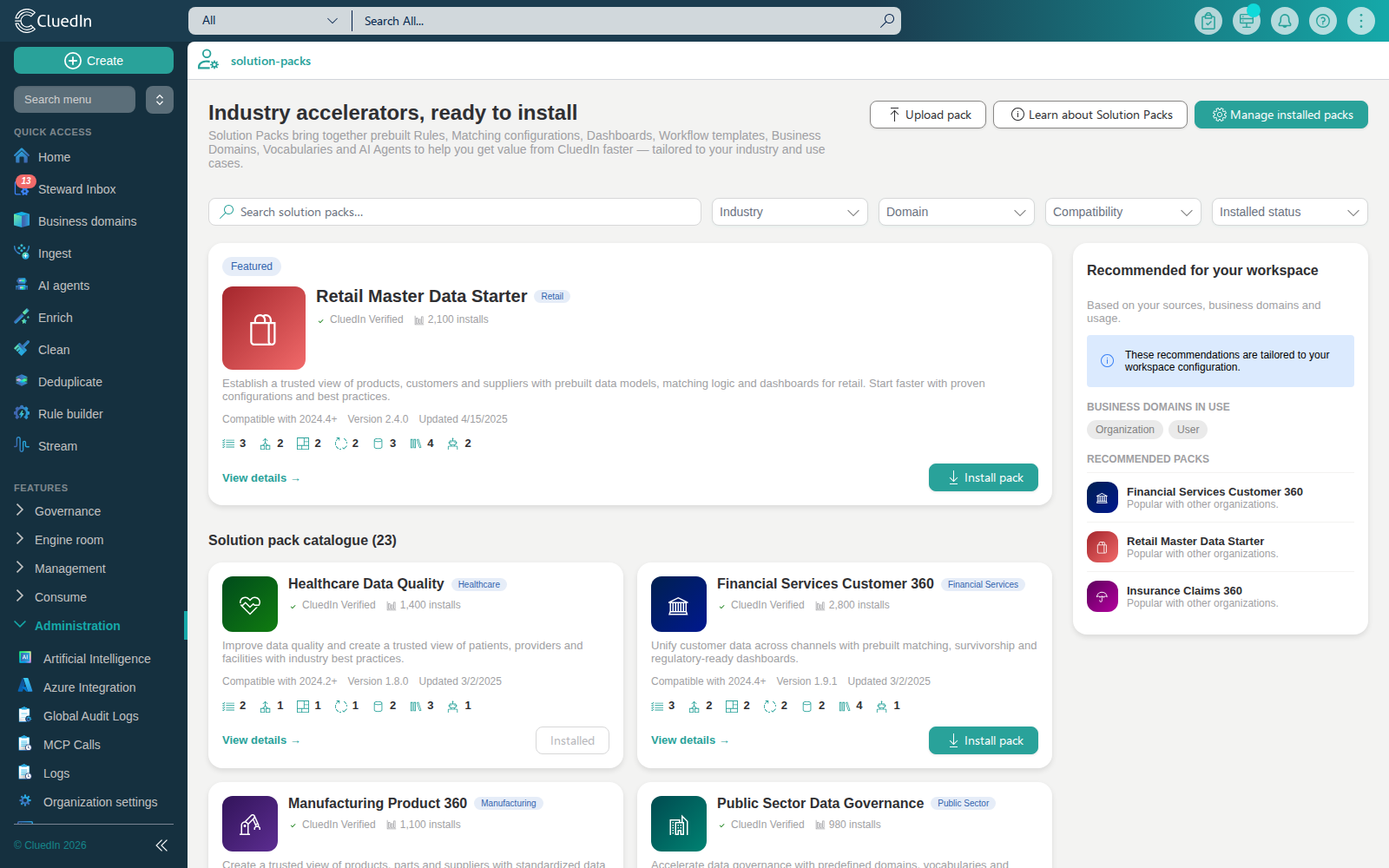
Browse the catalogue
The catalogue lists every available pack, with a search box and filters for Industry, Domain, Compatibility and Installed status. Each pack shows:
- Its industry and the business domains it covers.
- Whether it is CluedIn Verified, its compatibility range and version.
- How many other organizations have installed it, and when it was last updated.
- A count of each kind of artifact it includes (Rules, Matching configs, Dashboards, Workflows, Business Domains, Vocabularies, AI Agents).
Select View details on a pack to see its full description and the individual artifacts it includes.
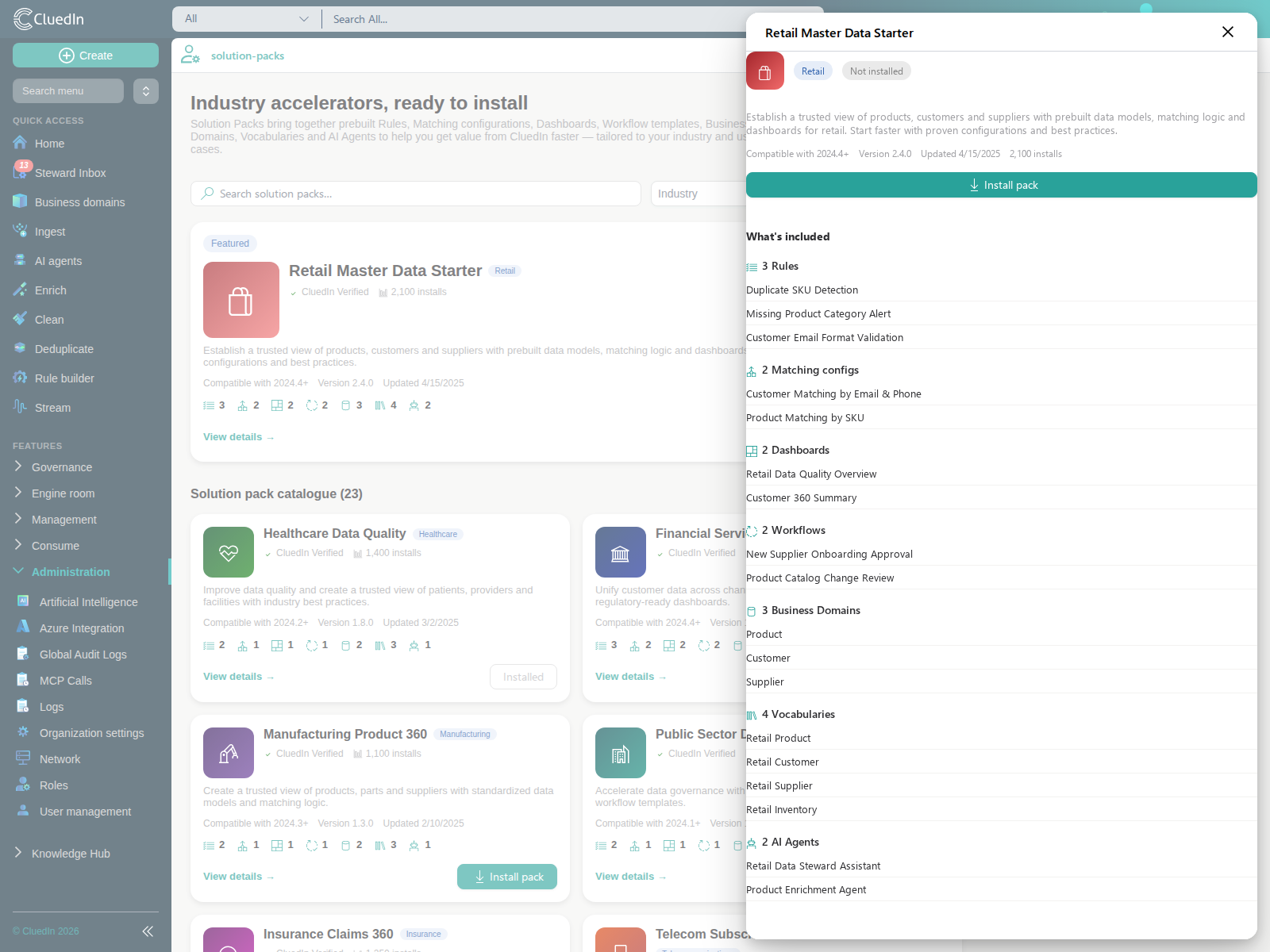
Recommended for your workspace
The panel on the right of the catalogue recommends packs based on your own workspace: the source types you have connected, and the business domains already in use. A pack is recommended when its declared source types or domains match what you already have configured; when nothing matches yet, it falls back to the most-installed packs. The same detected sources and domains in use are listed above the recommendations.
Install a pack
- On the navigation pane, go to Settings > Marketplace > Solution Packs.
- Find a pack, either from the catalogue grid or the Recommended for your workspace panel.
- Select Install pack.
What this creates
Installing a pack creates the Business Domains and Vocabularies it declares as real, organization-scoped configuration, immediately visible on their own pages. A business domain that already exists under the same name is reused rather than duplicated.
The pack’s other declared artifacts — Rules, Matching configurations, Dashboards, Workflow templates and AI Agents — are tracked against the installed pack, and their counts are shown on the pack’s card and details panel, but they are not yet created as working configuration in their own areas. The pack’s details panel marks each artifact Available now or Tracked with this pack; not yet available in its own area accordingly.
Update a pack
When a pack you have installed has a newer catalogue version, its row in Installed packs shows an Update available status and an Update action. Selecting Update records the pack as being on the latest version; it does not currently re-run installation for artifacts added by the new version.
Uninstall a pack
From Installed packs, select Uninstall on the pack, then confirm. This removes the Business Domains and Vocabularies the pack installed. If a business domain is still referenced by a vocabulary your organization added separately, that business domain is left in place rather than failing the whole uninstall — uninstall always clears the pack’s own installed-state tracking, even when some of what it created could not be fully removed.
Rules, Matching configurations, Dashboards, Workflows and AI Agents the pack declared are not affected, since installing a pack does not yet create them as working configuration — see What this creates.